



Introduction
Thinking back to my first significant website launch fifteen years ago still makes me tremble. Like total beginners, we shut off our laptops, hit the publish button, and went straight to the bar on a Friday night. We were pounded hard by Monday morning. Angry emails from customers flooded the client’s mailbox. The contact forms were totally busted. That one mistake ruined a big lead campaign and lost us a lot of trust.
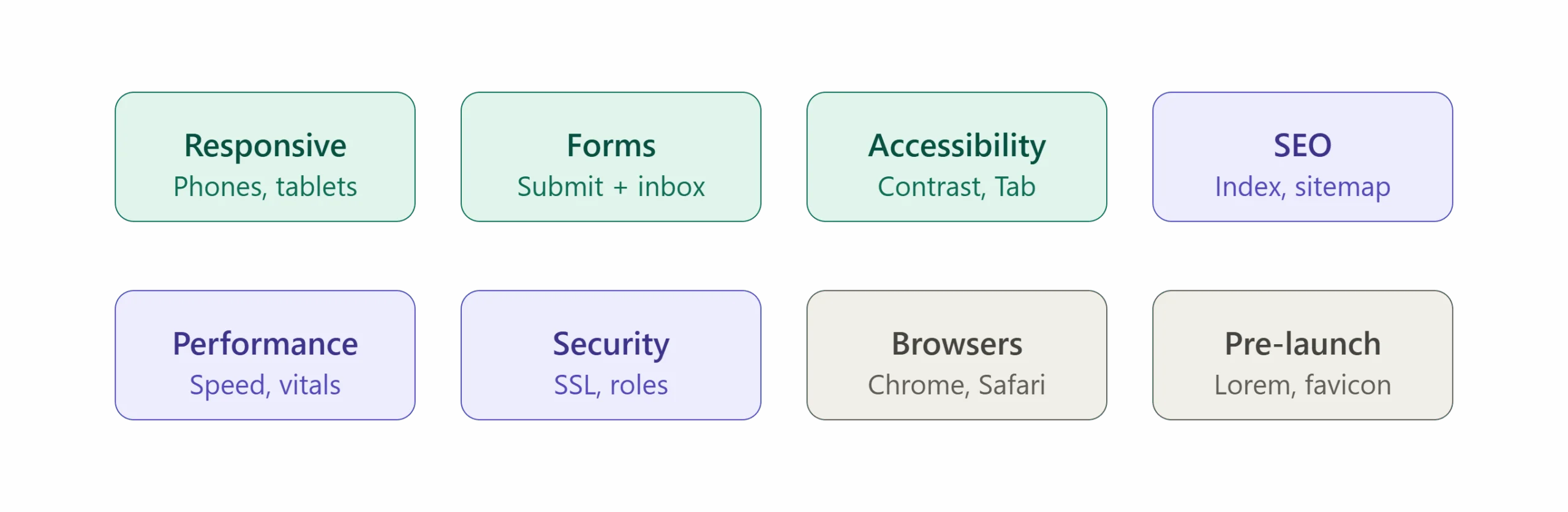
Since then, I figured out that writing the code is just the start. Getting the launch right is how you tell the pros apart from the folks just winging it. You truly need a good WordPress QA Checklist if you’re sick of holding your breath every time you push publish.
When you’re rushing or hurrying to get a project to-be done on time, some points slip through the cracks. It happens to developers. You may miss a dead links, forget to delete some dummy text or data, or leave a staging URL right there on the homepage. Having a set routine takes all that launch day stress away. I’m going to share the exact steps agency vets use to test their WordPress sites so you can launch without the panic.
Why every WordPress website needs a QA checklist
Let’s be real for a time. Testing is the last thing that anyone wants to do. Where budgets dry up, clients get pushy, you just want that website to be live. But skipping your WordPress quality assurance steps is a great way to ruin your name.
Having a ready checklist so it means that you don’t have to depend on your memory. It doesn’t matter if you’re working alone from your couch or running a whole team at an agency. Doing a standard WordPress website audit guarantees every project you finish actually works like it’s supposed to. Lots of people touch a site before launch—designers, writers, SEO guys. Stuff gets messed up. Your checklist is the final guard.
Finding a bug on a staging site is no big deal. Trying to fix a broken checkout while real people are trying to buy stuff? That’s awful.
This is a big deal if you write custom code. For instance, if you do WordPress plugin development, you already know one tiny typo can break an entire site. Testing the whole website uses that same careful mindset, just for the front-end stuff
Responsive design checklist
Making it work on mobile isn’t just making things smaller. People need to actually tap and swipe around easily on their phones without getting frustrated.
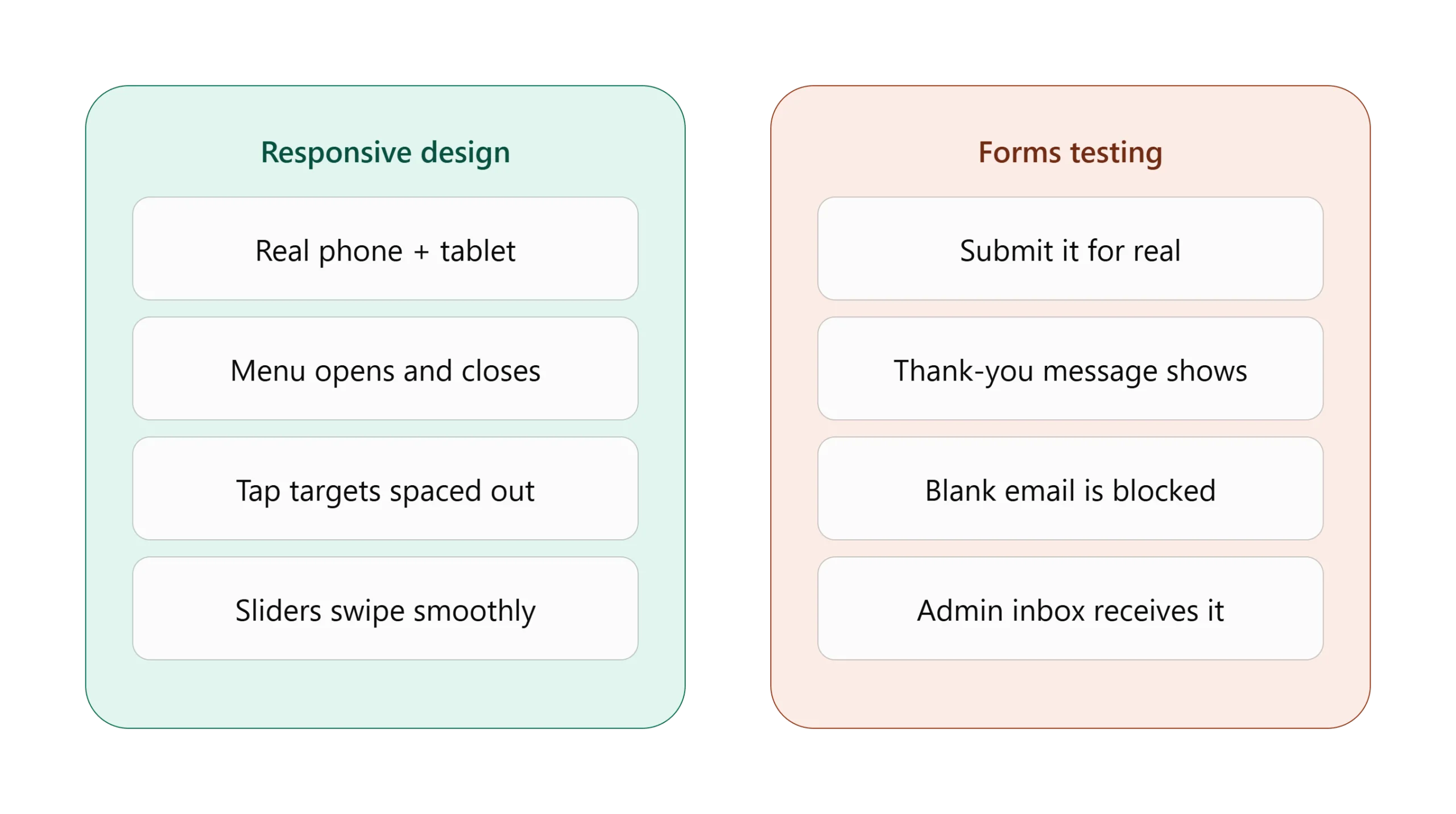
- Check different sizes: Don’t just drag your browser window smaller. Look at the site on a real phone and a tablet. Turn the tablet sideways to see what happens to your columns.
- Test the mobile menu: Tap the menu icon a few times. Does it open okay? More importantly, can you close it, or are you stuck?
- Fix button spacing: There is nothing worse than trying to tap a link and accidentally hitting the one next to it. Give your buttons some room.
- Look at the fonts: A giant headline looks good on screen, but remember that when it comes to mobile, the font should get shrunk down so people can actually read it.
- Test the moving parts: On a real device, make sure that you can scroll or swipe easily with your thumb through Image sliders, carousels, and drop-down sections that actually break on phones all the time.
Below are the code snippets
Viewport meta tag (check this exists first): <meta name="viewport" content="width=device-width, initial-scale=1">
Fix button spacing (tap targets): @media (max-width: 782px) {
  .menu a,
  .wp-block-button__link,
  .woocommerce a.button,
  button {
    min-height: 44px;
    min-width: 44px;
    display: inline-flex;
    align-items: center;
    justify-content: center;
}
  .menu li + li {
    margin-top: 8px;
  }
}
Shrink headline fonts on mobile: h1 {
  font-size: clamp(1.75rem, 5vw, 3rem);
  line-height: 1.2;
}
Forms testing checklist
Forms are usually how a site makes money. If the contact form or checkout breaks, the client loses cash. Test them hard.
- Fill them out for real: Don’t just look at them. Type in a fake name and hit submit. Make sure it actually goes through.
- Look for the thank you message: People need to know their message actually went through. Make sure a clear “Thank You” text pops up, or better yet, send them to a dedicated thank you page.
- Try to break it: Leave the email blank and hit submit. The form should stop you and tell you what you did wrong.
- Check the inbox: Did the admin email actually arrive? Can you read the data easily by email inbox?
Below are the code snippets
Catch silent email failures: define( 'WP_DEBUG', true );
define( 'WP_DEBUG_LOG', true );
define( 'WP_DEBUG_DISPLAY', false );
Then log every failure: add_action( 'wp_mail_failed', function ( $wp_error ) {
error_log( 'wp_mail failed: ' . $wp_error->get_error_message() );
} );
SEO checklist
A pretty site is worthless if Google can’t find it. Your WordPress pre-launch checklist needs basic SEO steps.
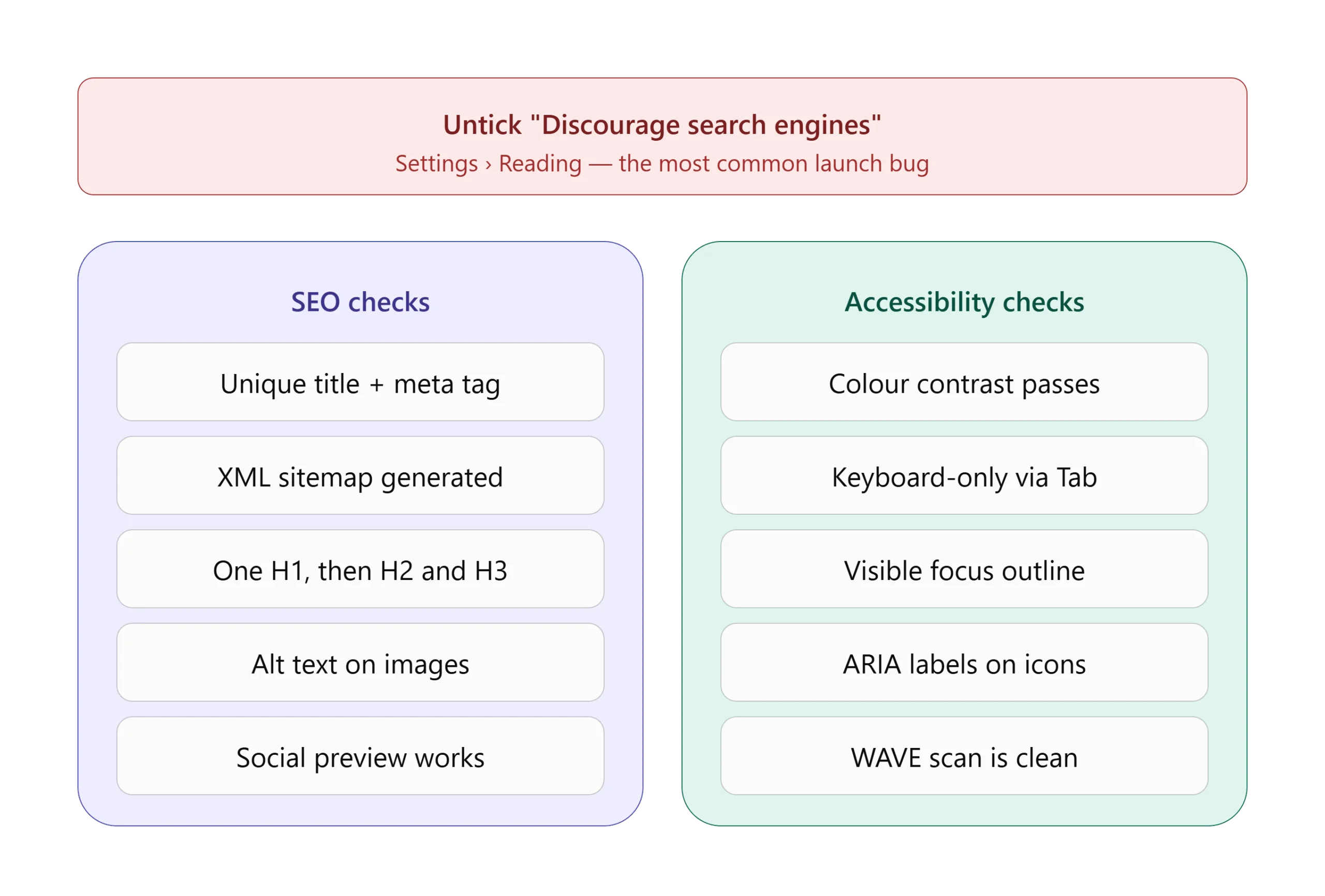
- Let search engines in: Go to WordPress > Settings > Reading. Find the section or box that is labeled with “Discourage search engines from indexing this site” and ensure that it is unchecked. Everyone forgets this all the time.
- Check your SEO titles: Every blog post and blog single page needs its own specific description and title with suitable keywords, and make sure that it shouldn’t be empty.
- Check social sharing: Paste a link into Facebook or Slack. Does the right picture show up?
- Look for the sitemap: Open whatever SEO plugin you use and make sure it is actually building an XML sitemap. Google needs this to figure out what is on your site.
- Check your headings: Keep to one main H1 title per page. After that, use H2s and H3s in order, like an outline for a school paper. Don’t just pick an H3 because you like how the font looks.
- Add image text: Write alt text for your pictures so Google knows what they are.
Accessibility checklist
Ensuring that a site is accessible means anyone can use it very easily, even if they have visual issues, like a blind person or handicap while using a mouse or mobile. A lot of places actually require this by law now, but honestly, it’s just good manners.
- Look at your colors: On a white background, using Light gray text may look cool as designer point of view, but not everyone cannot read it like a normal person. So make it contrast in such way it should like professional and decent for everyone.
- Put the mouse away: Unplug your mouse and, by using the keyboard, try to access every functionality by using the Tab button.
- Check where you are: When you use the Tab key, you should see a box or outline around the link you are currently on.
- Add hidden labels: If you use a little shopping cart picture for your checkout button, a screen reader software has no idea what that picture means. You have to add hidden text tags (they call them ARIA labels) to tell the software what the button actually does.
Performance & core web vitals checklist
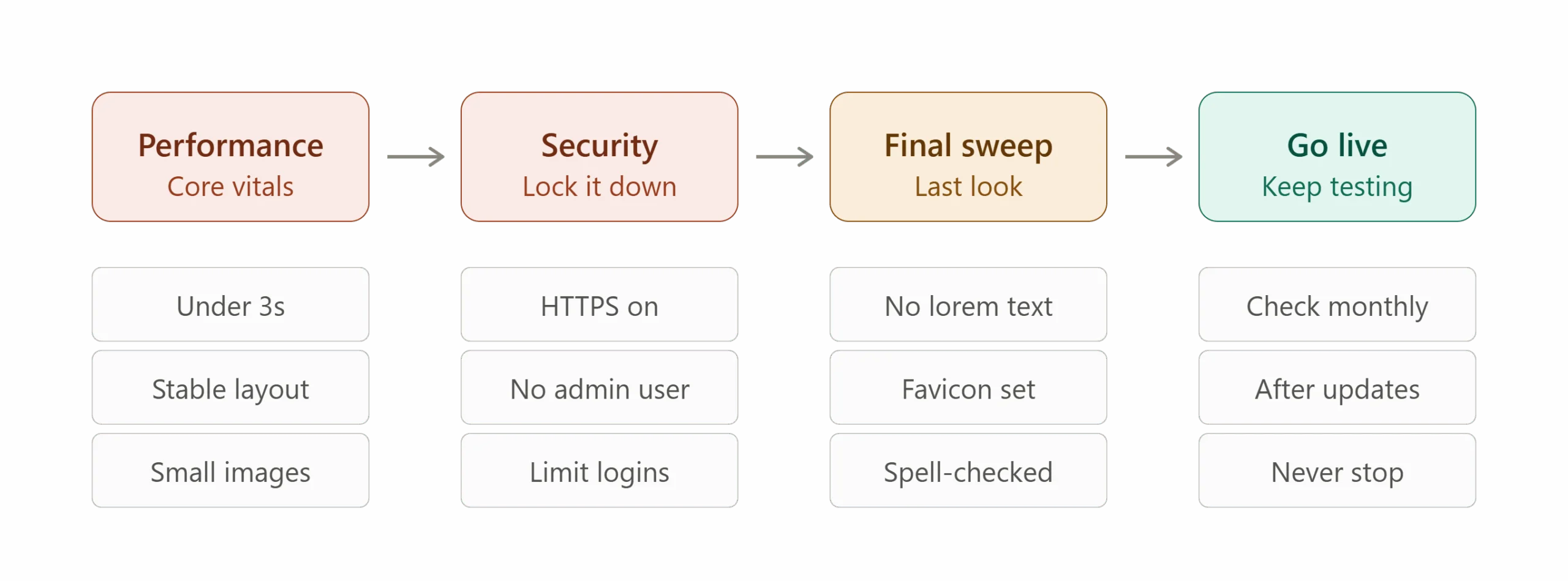
- Test the speed: Run the site through a speed tool. Try to get it to load in under three seconds.
- Check the web vitals: Google hates it when a page jumps around while it’s loading. Make sure your layout is stable.
- Shrink your images: Huge photos slow down websites more than anything else. Resize them before you upload them.
- Check your web host: You can shrink pictures all day long, but if your server is cheap and slow, the site will be slow too. Simply updating the software on your server does wonders. If you need help with that, check out this PHP 8.2 upgrade checklist to get your back-end moving quickly.
Security & backup checklist
- Get an SSL: Make sure your site has HTTPS. Browsers will put a big red “Not Secure” warning on it otherwise.
- Fix the passwords: Never use “admin” as a username. Make everyone use strong passwords.
- Stop bot logins: Add a tool that blocks people if they type the wrong password too many times.
- Hide your version: Don’t let WordPress announce what version it’s running. It makes it too easy for hackers to hack the website or application.
- Check user roles: Clients usually just need to edit text. Give them Editor access, not full Admin rights, so they don’t break things.
- Move it safely: Moving a site to a live server can go wrong. Check out a WordPress migration checklist to do it right.
Browser compatibility checklist
You probably use Chrome, but not everyone does. Websites can look totally different depending on the browser.
- Start with Chrome: Test here first since most people use it.
- Check Safari: Safari on iPhones is weird. Things tend to overlap if you aren’t careful.
- Look at Firefox: Click around in Firefox to make sure the fonts look right.
- Test Edge: A lot of office workers are forced to use Edge, so make sure the site works there.
- Don’t forget older phones: Make sure it still looks decent on older devices.
Recommended WordPress QA tools
Here are some tools I use all the time to make testing faster.
- Browserstack: Great for testing on different phones if you don’t actually own an iPhone and an Android.
- WAVE: A free browser tool that highlights accessibility problems on your screen.
- GT Metrix: Gives you a chart showing exactly which file is slowing things down.
- WP-CLI: If you like using the command line, this lets you manage the database super fast.
Final WordPress QA checklist before launch
Okay, the client is happy and you’re about to go live. Run through this list right before you flip the switch.
- Delete fake text: Search the whole site for “Lorem Ipsum”. Make sure you didn’t leave dummy text in the footer.
- Check the little icon: Look at the browser tab. Is the little icon the client’s logo, or is it still the WordPress W?
- Run a spell check: Put the homepage text into Grammarly. Typos look really bad.
Most frequently asked question in FAQ
Conclusion
Launch day should be boring. Seriously. If you use a strict WordPress QA Checklist, you won’t be running around trying to put out fires.
When you take the time to check mobile layouts, test your forms, and speed up the server, people get a great experience right from the start.
Just remember that testing never really stops. Browsers change, plugins update, and things break over time. Make checking the site a normal part of your monthly routine. Doing this keeps your clients happy and proves you actually know what you’re doing.